
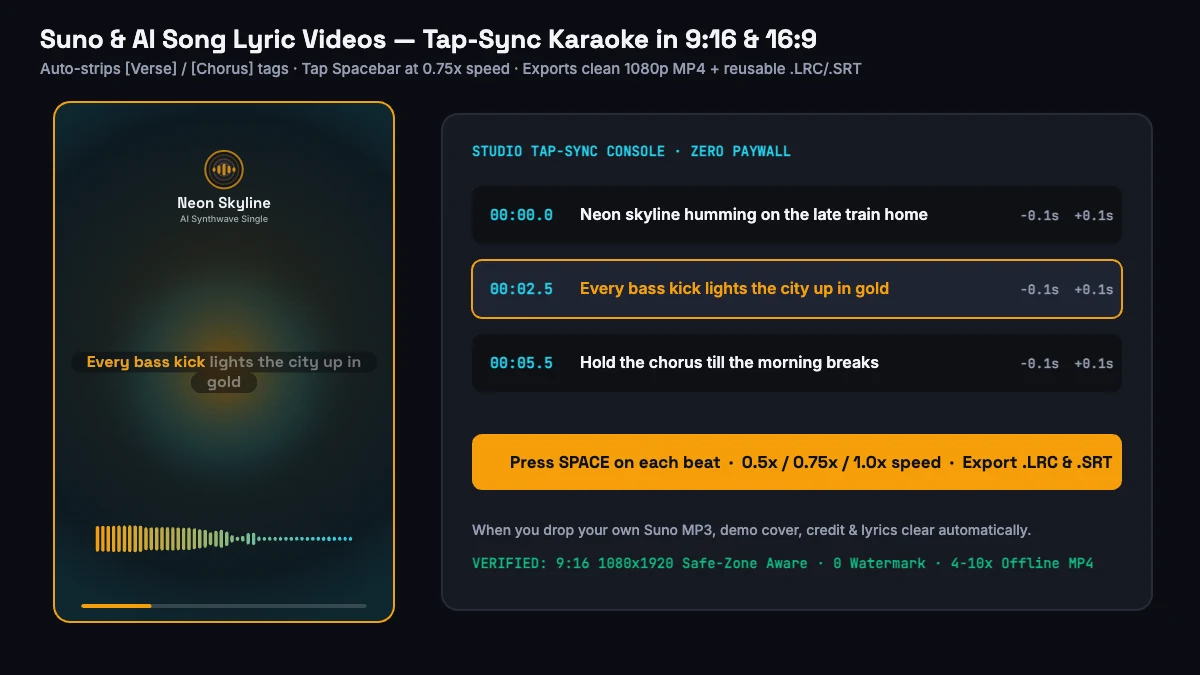
Suno Default Download vs. Suno Visuals vs. Local Spectrum Visualizers
Suno gives creators two native options: a basic default song video download (static cover with plain text) and Suno Visuals (AI video generation across 5 aspect ratios — 9:16, 16:9, 1:1, 4:3, 3:4 — with lyric customization and lip-sync).
When you want audio-reactive FFT spectrums, spinning vinyl covers, transparent RGBA overlays for CapCut/Premiere, or frame-tight downloadable .LRC/.SRT captions without spending extra AI video credits or hitting third-party $14.99–$29.99/month lyric-app watermarks, running locally in your browser gives you unlimited clean 1080p exports in under 3 minutes for $0.
4-Step Suno-to-TikTok & YouTube Workflow
Step 1: Download Your Suno Audio & Cover Image
From your Suno library, download the MP3 (or WAV if you are on a paid Suno plan for cleaner highs) and save the square generated cover image. Open Suno Music Visualizer and drop both files directly into the Audio tab. Nothing is uploaded — both files stay in local browser RAM.
Step 2: Pull Automatic Sleeve Colors & Pick a Stage Look
Click Auto-Palette right inside the Audio tab so your spectrum bars match your Suno cover art automatically. Then pick a preset tailored to your genre:
- Lyric Flow (Default on Suno page): Balanced vertical stage leaving breathing room for large karaoke lyrics over your blurred cover art.
- Vinyl Spin: Classic 33⅓ RPM record look for lo-fi, soul, indie rock, and retro pop AI tracks.
- Halo Ring: Radial bass-reactive circle pulsing on 40–140 Hz kick hits for EDM, phonk, hyperpop, and trap.
- Floor Bars: Tall bottom mastering bars with peak-hold indicators for high-energy hip-hop and bass tracks.
Step 3: Clean & Tap-Sync Your Lyrics in Under 3 Minutes
- Open the Lyrics tab and copy-paste your full Suno prompt lyrics into the text box — section headers like
[Intro],[Verse 1],[Pre-Chorus],[Chorus], and[Outro]are automatically stripped so they never flash awkwardly on screen. - Choose 0.75× speed (great for fast rap or dense choruses) or 1.0×, click Start Tap-Sync to start playback (Line 1 stays armed until your first vocal cue — no premature 0.00s stamp), and tap Spacebar right as each lyric line enters.
- Spot a line that came in slightly early? Click -0.1 or +0.1 beside that timestamp to nudge it cleanly, then choose Active Clip (0:00) or Full Track scope and hit Download .LRC / Download .SRT to keep a reusable subtitle file synced to your exact video.
Step 4: Toggle Safe Zones & Bounce Both 9:16 and 16:9 Clean MP4s
- For TikTok, Reels & YouTube Shorts: Keep ratio at 9:16, click Safe Zones above the canvas to ensure your lyrics stay clear of bottom captions and right-hand Like/Share icons, trim to your strongest 30s or 60s chorus if desired, and click Export Free MP4 (~10 seconds locally).
- For Full YouTube Upload: Switch ratio to 16:9, set Clip Length to Full, and click Export Free MP4 — a 3-minute 1080p master finishes in ~30–36 seconds with zero watermark.
Building dedicated AI rap tracks and looking for an end-to-end AI rap song and video generator? Explore our partner studio MakeMeRap.com alongside Audio Visualizer Online.
Sources & Primary References
All upload dimensions, subtitle standards, and video specs referenced in this Suno release playbook link directly to official documentation (verified November 2026):
- YouTube Help — Recommended upload encoding settings (
16:91080p H.264 +48 kHzAAC-LC upload settings): https://support.google.com/youtube/answer/1722171?hl=en - YouTube Help — Supported subtitle and closed caption files (official support for basic UTF-8
.srtand.lrcexports): https://support.google.com/youtube/answer/2734698?hl=en - TikTok Business Help Center — TikTok Auction In-Feed Ads (official
9:16MP4/MOV upload dimensions and safe-zone guidance): https://ads.tiktok.com/resources/help/article/tiktok-auction-in-feed-ads?lang=en - Audio Visualizer Online Engineering Lab (local WebCodecs 3-minute 1080p MP4 render speed and
0.0 msAAC priming sync logs): About & Verified Benchmarks