
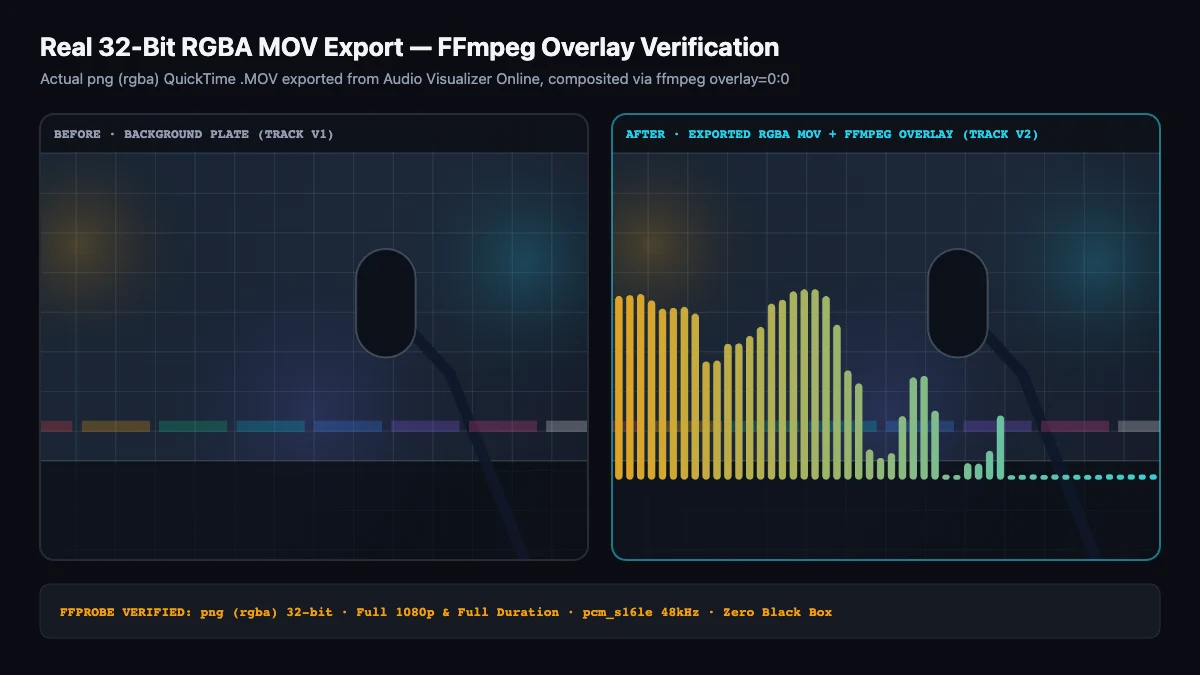
True 32-Bit Transparent Overlays — Verified Across Real Editors
When you already have B-roll, studio performance footage, or a talking-head video podcast, you do not want a boxed template background — you need a transparent audio visualizer that composites cleanly over your footage.
Most web tools either force a solid background, lock Alpha exports behind $29/month subscriptions, or output only VP9 WebM files that turn solid black inside CapCut. Audio Visualizer Online gives editors three verified compositing exports free in one browser tab — with honest, lab-tested macOS and NLE notes so you pick the right path on your first export:
Editor Compatibility Matrix (Lab-Verified)
| Video Editor / App | Recommended Export Option | Background Setting | Verified Behavior & Notes |
|---|---|---|---|
| Adobe Premiere Pro | Transparent Alpha MOV (png RGBA) |
Transparent Alpha | Verified in FFmpeg (32-bit rgba + 48 kHz PCM); test a 1s Demo clip first on your exact build, then drop on Track V2 |
| Adobe After Effects | Transparent Alpha MOV (png RGBA) |
Transparent Alpha | Import to Project panel → drag layer above footage in Composition → mute overlay audio switch if needed |
| DaVinci Resolve | Transparent Alpha MOV (png RGBA) |
Transparent Alpha | Lossless straight alpha + 48 kHz PCM (test 1s Demo clip first; set Alpha Mode → Straight if needed) |
| Final Cut Pro (Modern macOS) | Fast Offline MP4 (or MOV → ProRes 4444) | Green (#00FF00) (or RGBA MOV + FFmpeg) | Modern macOS AVFoundation removed legacy QuickTime png decoding (-11833); use Green MP4 + FCP Keyer, or 1-line FFmpeg to ProRes 4444 / HEVC Alpha |
| OBS Studio / Web | Transparent Alpha WebM | Transparent Alpha | Verified vp9 with alpha_mode="1" and finite duration header |
| CapCut (Desktop & Mobile) | Fast Offline MP4 | Green (#00FF00) | Avoids CapCut's WebM black-box bug; 1-click Chroma Key |
1-Second Pre-Flight Test (Recommended Before Long Exports)
Because NLE builds and operating systems change legacy codec support over time, click Export 1s Demo Test MOV (720p) above to immediately generate and download an isolated 1.0-second 720p Transparent MOV from the built-in Demo track (~0.5 seconds locally) without changing your loaded track, clip length, or studio settings — then drop that tiny test file into your exact editor before rendering a full 3-minute song.
For Final Cut Pro / macOS AVFoundation users who want true lossless alpha instead of Green Screen Keyer, transcode our lossless 32-bit RGBA .mov locally in one command:
- Apple ProRes 4444:
ffmpeg -i input.mov -c:v prores_ks -profile:v 4444 -pix_fmt yuva444p10le -c:a copy out-prores4444.mov - HEVC with Alpha (Apple Silicon):
ffmpeg -i input.mov -c:v hevc_videotoolbox -alpha_quality 0.75 -vtag hvc1 -c:a copy out-hevc-alpha.mov
Zero-WASM Lossless QuickTime MOV Speed Advantage
Instead of downloading a 25–40 MB WebAssembly encoder before your first frame renders, our studio pairs the browser's native C++ PNG encoder with a lightweight pure-JavaScript QuickTime .mov muxer (pix_fmt=rgba, 32-bit depth, standard pasp/fiel/elst atoms). In local Chrome lab tests, a 3-second 720p 30fps transparent overlay finishes in 1.5 seconds with 0 ms audio-video sync drift verified by ffprobe.
Need exact timeline settings for Premiere, After Effects, DaVinci Resolve, Final Cut Pro, or CapCut? Follow our Premiere, AE, Resolve, FCP & CapCut Transparent Overlay Guide or compare #00FF00 vs. #00B140 chroma keying and ProRes 4444 / HEVC Alpha in our Green Screen Hex Code & Alpha Video Guide.