
Official Spotify Canvas Dimensions & Technical Specs (Verified Nov 2026)
Artists lose hours re-exporting Spotify Canvas loops because most social-video templates default to TikTok's 1080×1920 pixel grid. Spotify's official Canvas guidelines set a strict height window of 720px to 1080px tall at a vertical 9:16 aspect ratio — not 1920px tall.
Every specification below was checked directly against Spotify for Artists Canvas documentation (verified November 2026) and cross-tested locally with ffprobe and Apple AVFoundation on our own studio exports:
| Specification | Official Spotify Canvas Requirement | Recommended Native Export Setting | Common Upload Mistake |
|---|---|---|---|
| Aspect Ratio | 9:16 vertical | Exact 9:16 portrait canvas |
Uploading 1:1 square cover art or 16:9 YouTube cuts |
| Height & Pixel Dimensions | 720px to 1080px tall | 608×1080 (max sharp height) or 406×720 |
Exporting 1080×1920 (forces server downscaling & softer bars) |
| Duration / Length | 3 to 8 seconds | 8.0s (or 4.0s / 6.0s beat-matched bar loop) |
Uploading a 2.5s sting or 10s chorus clip (rejected) |
| File Format | MP4 (video) or JPG (still) | H.264 (avc1, yuv420p) .mp4 |
Uploading .webm, .mov, or .gif (rejected by Spotify) |
| Audio Track | Muted / ignored by Spotify | Silent or standard 48 kHz AAC (Spotify strips audio) | Expecting Canvas audio to sync or replace your master track |
| Text, URLs & Titles | Strongly discouraged / restricted | Blank title, blank artist, zero lyrics | Putting song title, social handles, or promo text over artwork |
Why 608×1080 Is the Sharpest Valid Spotify Canvas Resolution
Do the arithmetic on Spotify's 720px–1080px height rule:
- At the 1080px maximum height, a true
9:16frame is1080 × 9 / 16 = 607.5pixels wide. - H.264 encoders require even pixel dimensions (
width % 2 === 0), so rounding607.5to the nearest even integer gives608×1080(actual ratio0.56296vs exact9:16 = 0.5625, less than0.09%variance). - At the 720px minimum height,
720 × 9 / 16 = 405, rounded to even width406×720. - Many design guides cite
576×1024as a middle-ground9:16multiple of 64. Both576×1024and608×1080pass cleanly, while608×1080gives you 11.4% more pixels right at Spotify's 1080px ceiling without triggering height downscaling.
In our local lab check (v4-third-audit-repro-report.json), exporting our studio's Canvas 1080h preset produced an ffprobe and Apple AVFoundation receipt of exact 608×1080, 240 frames at 30 fps, and exact 8.000000s duration across video, audio, and container headers — playable with zero decoder warnings.
Mobile Crop Rules & Safe Framing Across Phone Screens
Even when your pixel dimensions match 608×1080, Spotify displays Canvas full-bleed behind the Now Playing interface on phones with very different aspect ratios — from compact 16:9 devices to taller 19.5:9 and 20:9 modern screens.
Spotify's own Canvas framing guidance warns that outer edges can be cropped depending on the listener's phone, and playback controls cover the lower third of the screen:
- Keep the focal artwork and radial spectrum in the center 60% vertical band: On tall phones, Spotify zooms slightly to fill the height and trims the left and right edges. Putting thin waveform peaks flush against the left or right border means they disappear on narrow displays.
- Leave the bottom ~28% visually calm: Spotify's track title, artist credit, heart button, progress scrubber, and Play/Pause controls sit over the bottom third of your Canvas. Dark or low-contrast blurred sleeve backdrops in the lower zone keep Spotify's white UI icons legible.
- Leave the top ~12% clear of focal elements: The top header bar (down arrow, playlist name, overflow menu) overlays the upper edge.
- Skip song titles, artist names, and burned-in lyrics: Spotify already prints your track title and artist name directly in Now Playing, and Spotify's content policy flags URLs, ticket pushes, social handles, and promotional text inside Canvas visuals. Save your karaoke lyrics for 9:16 TikTok, Instagram Reels, and YouTube Shorts instead.
The 3 Looping Styles Spotify Recommends (and How Audio Visualizers Fit)
Spotify's Canvas playbook highlights three loop structures that avoid jarring visual jumps every 8 seconds:
- Continuous Loop: The cleanest fit for beat-reactive visualizers. Pick an 8-second section that covers an exact 4-bar phrase (for example, at
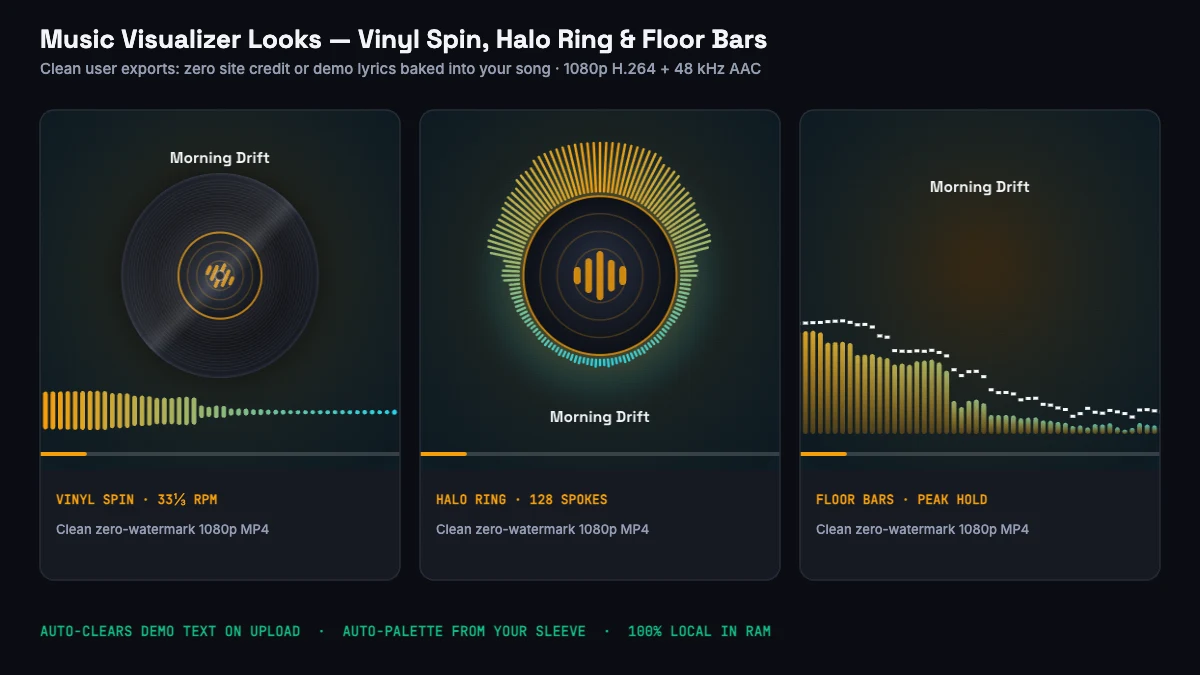
120 BPM, 4 bars of 4/4 time equals exactly8.00 seconds). Use Halo Ring or Vinyl Spin so motion feels steady and hypnotic rather than cutting abruptly at second 8. - Rebound Loop: Forward-then-reverse motion (ideal for filmed B-roll, smoke, or abstract 3D camera moves). Avoid reversing frequency bars unless done subtly, as backwards transient decay can look unnatural.
- Hard Cut: Intentional rhythmic edits timed to a 2-bar or 4-bar beat switch. Keep cuts clean and avoid rapid strobe flashing, which Spotify explicitly advises against for viewer comfort.
Exact BPM-to-Canvas Bar Math (3–8 Seconds)
If you want your 3–8 second Canvas to loop smoothly on the musical downbeat, match your clip length to your track's tempo:
| Track Tempo (BPM) | 2 Bars (8 Beats) | 4 Bars (16 Beats) | Best Canvas Clip Choice |
|---|---|---|---|
| 80 – 95 BPM (Hip-Hop / Lo-Fi) | 5.05s – 6.00s |
10.1s – 12.0s (over 8s max) |
Trim a clean 2-bar loop (~5–6s) |
| 100 – 115 BPM (Pop / R&B) | 4.17s – 4.80s |
8.35s – 9.60s (over 8s max) |
Trim a clean 2-bar loop (~4.2–4.8s) |
| 120 – 130 BPM (House / Synthpop) | 3.69s – 4.00s |
7.38s – 8.00s |
Export the full 4-bar 8s preset |
| 140 – 150 BPM (Trap / DnB) | 3.20s – 3.43s |
6.40s – 6.86s |
Export a 4-bar loop (~6.5s) |
How to Export a Compliant 608×1080 Spotify Canvas MP4 Free (Step-by-Step)
You do not need After Effects, Premiere Pro, or a paid subscription to build a beat-reactive Spotify Canvas loop. Follow these 5 steps locally in desktop Chrome, Edge, or Brave (which provide native offline WebCodecs H.264/AAC MP4 encoding):
- Open Music Visualizer Online and click Load Spotify Canvas Preset (608×1080 · 8s) right above the workspace. This automatically configures
9:16ratio,Canvas 1080h(608×1080), and the8sclip window. - Drop your song and album cover image into the Audio panel (or drag both files together onto the canvas — our studio processes audio before cover art automatically so your sleeve stays applied). Click Auto-Palette to extract complementary bar colors directly from your cover.
- Clear Track Title, Artist Name, and Lyrics: Keep text fields empty and captions off so your Canvas strictly follows Spotify's text-free visual guidelines.
- Pick your strongest 8-second hook: Scrub inside the waveform deck to audition your chorus or drop, watch the Play ... · Export ... readout, and click Set Start Here to anchor the 8-second export window on the exact beat.
- Check the live output spec line and click Export Free MP4: Confirm the export spec line reads
Output: 608×1080 · 8.0s · 30fps · H.264 + AAC MP4with zero warnings. An 8-second608×1080Canvas finishes locally in ~2 seconds with zero upload and zero watermark.
Built-In Compliance Warnings (How the Studio Prevents Rejected Uploads)
Before you upload to Spotify for Artists, check for two automated guardrails inside our Export tab:
- Duration Warning (
< 3sor> 8s): If you load a 2-second stinger or switch from8stoFullon a 3-minute song while the Spotify Canvas preset is active, the output readout immediately flagsWarning: Spotify Canvas requires 3–8sso you never waste time uploading a rejected file. - Browser Codec Warning (Firefox / Non-WebCodecs): Because Spotify for Artists accepts only MP4 or JPG (never WebM), browsers that lack WebCodecs H.264 MP4 encoding display an explicit warning when falling back to WebM. Either switch to desktop Chrome, Edge, or Brave for direct local H.264 MP4 export, or convert the downloaded WebM locally in one line:
ffmpeg -i canvas.webm -c:v libx264 -pix_fmt yuv420p -an canvas-spotify.mp4.
Troubleshooting 6 Common Spotify for Artists Canvas Errors
| Error or Visual Problem | Root Cause | Verified Fix |
|---|---|---|
| File format not supported | Exported .webm, .mov, or HEVC .mp4 |
Export H.264 yuv420p .mp4 from Chrome/Edge/Brave or transcode via FFmpeg |
| Video length invalid | Clip duration is < 3.0s or > 8.0s (e.g. 8.2s) |
Select the 8s clip pill (verified exact 8.000s in ffprobe) |
| Blurry waveform edges after upload | Uploaded 1080×1920 and Spotify downscaled height |
Export native 608×1080 (Canvas 1080h) so Spotify skips vertical rescaling |
| Canvas cropped on listener's iPhone | Subject placed near left/right edge or bottom controls | Keep ring/bars centered inside the middle 60% vertical zone; toggle Safe Zones to preview |
| Canvas stays static or muted | Listeners have Data Saver on, or you expected Canvas audio | Normal Spotify behavior — Canvas always mutes its own audio and relies on the track master |
| Spotify removed or flagged Canvas | Contained website URL, merch CTA, or explicit imagery | Remove all titles, URLs, and promo copy; keep artwork compliant with Spotify Platform Rules |
Once your 608×1080 Spotify Canvas is uploaded in Spotify for Artists (desktop web or mobile app under Music → Releases → Add Canvas), switch the studio back to 16:9 (1920×1080) to bounce a matching YouTube visualizer or read our MP3 to YouTube Upload Guide to ship every channel on release day.
Sources & Primary References
Every technical specification in this guide was verified directly against primary platform documentation and local stream analysis (checked November 2026):
- Spotify for Artists — Canvas guidelines (official
9:16ratio,720px–1080pxheight window,3–8sduration, MP4/JPG format, and framing/text rules): https://support.spotify.com/us/artists/article/canvas-guidelines/ - YouTube Help — Video resolution & aspect ratios (for cross-publishing matching
16:9and9:16release masters without hard-baked padding): https://support.google.com/youtube/answer/6375112?hl=en - MDN Web Docs — AudioEncoder & WebCodecs API (client-side H.264/AAC MP4 encoding behavior across browsers): https://developer.mozilla.org/en-US/docs/Web/API/AudioEncoder/configure
- Audio Visualizer Online Engineering Lab (local Chrome +
ffprobe& Apple AVFoundation verification of608×1080,240frames,8.000000sCanvas output): About & Verified Benchmarks