
Start with one chorus
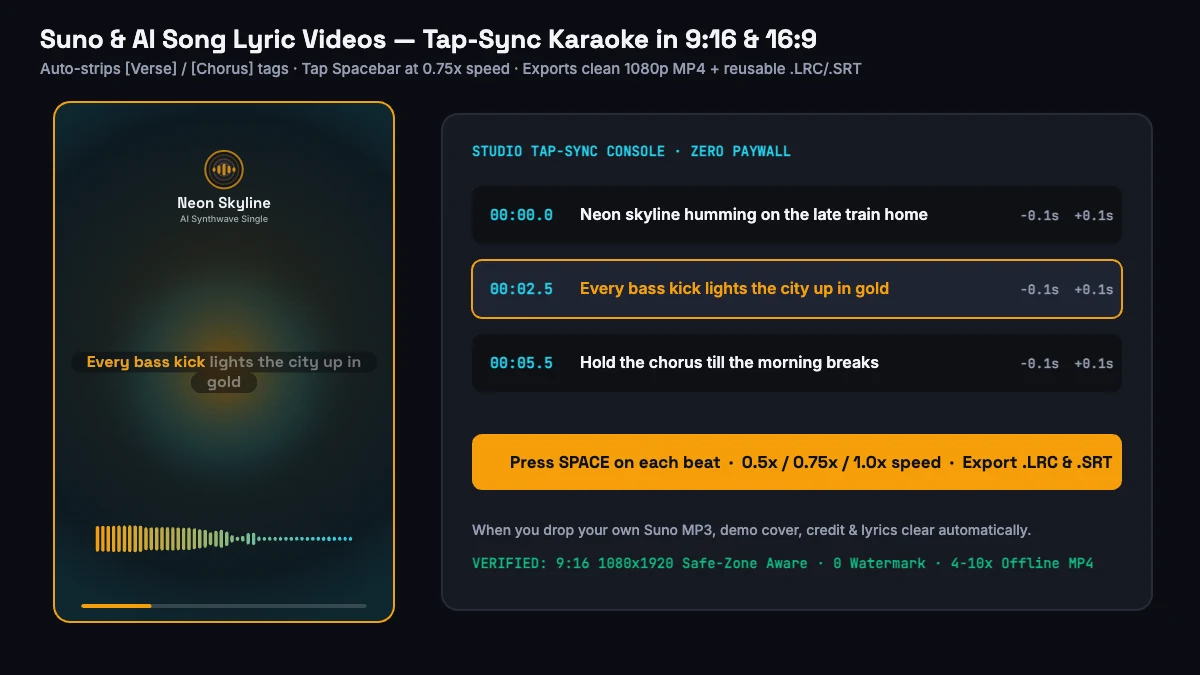
To make a lyric video for free, open the lyric video maker, add the final audio, and paste one sung phrase per line. Time each line against the singer, choose a readable caption style, then export a short section. Play the downloaded file on a phone with the sound both on and off. Once the words fit the screen and land with the vocal, return to Full and render the song. The studio adds no watermark to the video.
For a first pass, pick the busiest chorus. It will tell you whether your line breaks work, whether a high note needs a longer cue, and whether the brightest part of the artwork hides the words. A quiet first verse can look finished while all three problems wait another minute down the timeline. Keep the final mix, a plain text copy of the lyrics and your artwork together so you can repeat the export if the release changes.
Prepare a lyric sheet that matches the recording
Listen once with the text in front of you. Mark the pickup before the first downbeat, every repeated chorus, and any word the singer substitutes on the last take. A printed chorus followed by a repeat instruction is fine for a musician. A timing tool needs the words in their actual performance order. Duplicate the chorus for every appearance and listen for a changed final line before copying its spelling.
Split on breaths or complete thoughts. Suppose a singer delivers leave the light on in one breath, then waits for a reply. Give those five words one line. If the reply comes from another singer halfway through the next bar, give it a fresh line beginning with the reply. A line break that divides an article from its noun forces a reader to remember the first half while listening to the second. Read the lines aloud at the recorded pace before committing them to the timeline.
Paste the text after loading the audio. That order matters when starting a fresh project because loading a new recording normally clears the demo captions and artwork. Remove production directions, chord symbols and instructions such as repeat twice. The plain lyric parser can skip standalone bracketed section labels. Keep a meaningful word inside the sung line if it belongs onscreen. If you have a timed file for the same mix, import the LRC or SRT and go straight to the listening pass.
Sync to the first audible syllable
Open Lyrics, choose a comfortable playback speed and start Tap-Sync. Press Space or use the tap button when each phrase begins. The first click arms the control and starts playback. Each subsequent tap assigns the next line a start time on the recording. Listen for the consonant before the vowel on a word like stay. A snare landing after that consonant is an attractive visual marker, but following it puts the first word behind the singer.
Try the same four lines at 0.75× if a verse moves too quickly. The timestamps stay on the original song clock, so return to 1.0× to judge the result. Use the minus or plus 0.1 second button on an individual row for a small correction. If only the third line feels late, check the second and fourth before moving them. If all three feel late, listen on a wired output or a phone speaker as another check before compensating for Bluetooth playback delay.
A simple test phrase can make the distinction audible. Imagine the first syllable arrives at 12.40 seconds, a kick follows at 12.50 and the next line starts at 14.10. A tap on the kick sets the first lyric one tenth of a second late. Moving that line earlier by one step fixes the entrance. When the next line already lands on time, leave its timestamp alone. A global shift would move two entrances to repair one.
Leave room for silence
Some gaps carry the meaning of the song. A line can end on a whispered word and give way to four bars of drums. Hiding the text during those bars lets the next entrance read as a new verse. An ordinary line-timed LRC records when a phrase begins. A SubRip caption records both its beginning and its end. For a precise disappearance, use an SRT cue with an explicit end and check it over the instrumental.
Consider a cue that should run from second 22 to second 24, with the next lyric at second 31. Write the first end at 24 seconds in the SRT. Imported explicit end times let the video leave those seven seconds clear. You can prepare initial intervals in the LRC to SRT converter and edit the text file for a precise trailing silence. Store the edited SRT with the mix. Recreating it from start times later would require making the same editorial decision again.
Find a style the listener can read
Set the final aspect ratio before evaluating the line breaks. A horizontal frame has room for a long band name and a lyric across the bottom. The same artwork in portrait can put the singer's face directly behind the phrase. Use Safe Zones as a preview guide and inspect the canvas at phone size. Move the visual emphasis away from bright detail, pick a quieter background or try the Podcast style if a box helps the words stand out.
Compare Editorial with Karaoke on one slow phrase. Editorial gives the lyric a restrained entrance. The karaoke animation follows progress through the timed line. A singer holding the opening word for most of a bar can sound out of step with an evenly progressing effect. Keep that phrase in Editorial, split the text into shorter musical units for a new timing pass, or choose a consistent treatment for the whole song after comparing the chorus. Preview both the fastest and slowest line in the chosen treatment.
Export the video and its matching caption file
Use MP4 for a conventional music release. A browser with the supported fast encoding path can write H.264 video with AAC audio. The Export panel reports the available format on your device. Read the actual file extension when sharing a render from a fallback path. A renamed file still contains the same streams. Choose 1080p for the release and use a short active clip while confirming the design.
The selected window also matters for the caption download. A Short beginning at song time 45 seconds needs captions measured from the start of that Short. Choose Active Clip for its SRT and Full Track for the full song. For example, a line beginning at song time 47.20 arrives 2.20 seconds into that cut. A player receiving the full-song timestamps would wait until long after the short clip finished. Test the sidecar with the matching video before delivering the pair.
Review the downloaded copy
Watch the first entrance, a chorus repeat and the last release in the downloaded file. Read a verse silently to catch broken phrases. Listen to another verse while looking away, then look back on the next pickup. That second pass exposes text which appears only after the word has been heard. Check that the last frame and the instrumental tail end where intended. Save your approved caption file with a name that identifies the exact mix and edit length.
If the video will also have selectable captions on YouTube, upload the timed text through the caption workflow and preview the player with captions enabled. Burned lyrics travel with the picture and stay visible. Selectable captions can supply other information listeners need, including a meaningful sound or a change of speaker. Watch for two layers competing for the same space. An instrumental passage with no visible lyrics can still warrant a descriptive caption in the selectable track.
A useful final review is to give the chorus to someone who has never read the lyric sheet. Play the downloaded clip once and ask them to write down a particular line. If they lose the middle of the sentence, watch where their eyes have to move. A sudden switch from the upper left corner of the artwork to a caption near the bottom can cost most of a short phrase. Try a steadier background or shorten the phrase at a natural breath. Then repeat the test at the same screen size and speed. This gives you a concrete reading problem to fix before committing to the full render.
Sources & Primary References
- YouTube Help on recommended video and audio upload encoding
- YouTube Help on supported subtitle files and plain UTF-8 SubRip text
- Library of Congress description of SubRip blocks and timestamp ranges
- W3C WebVTT specification for selectable timed text on the web
- MDN documentation for browser video and audio encoding with WebCodecs