
Pick a fragment that can repeat throughout the song
A Spotify Canvas is the short vertical visual on the Now Playing screen. Your listener might encounter it during the opening bars, the bridge or the final chord. Pick a movement that makes sense in all three places. A halo around an illustrated moon can rise and settle at its own pace. A singer visibly mouthing the chorus will look out of sync as soon as the song moves into the next verse.
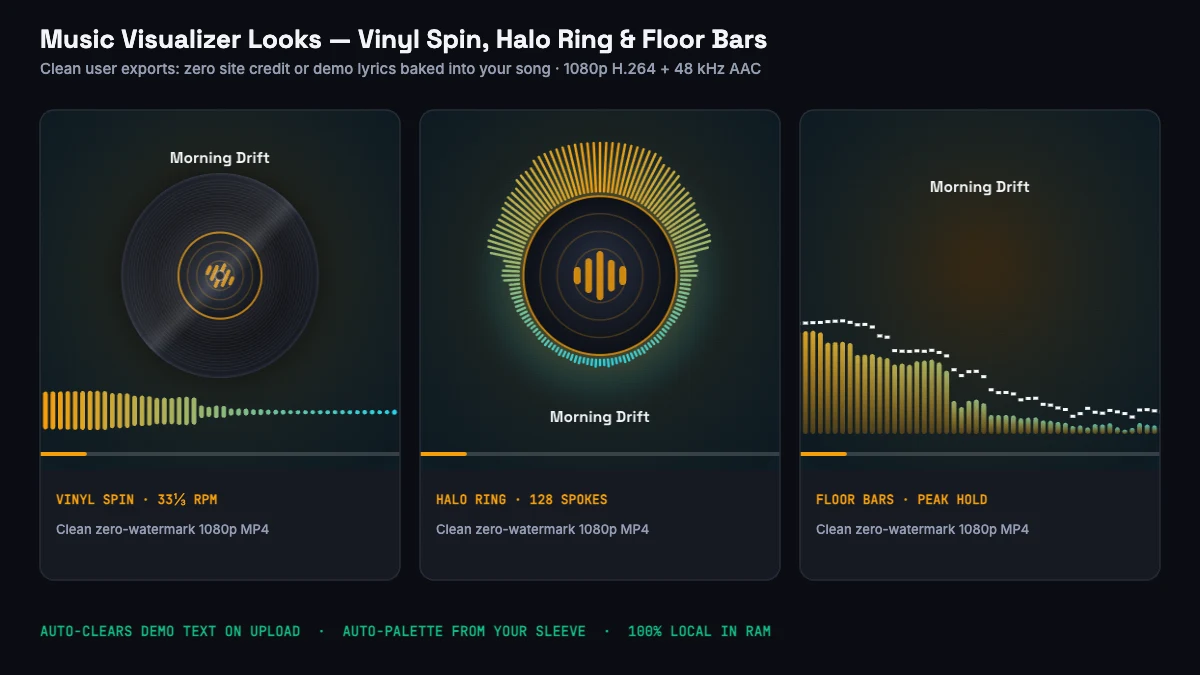
Start with the eight-second window in the studio and load your audio and artwork. The track supplies energy for the ring during editing. At Canvas resolution the studio exports a silent loop, since Spotify plays the released track independently. Mute your speakers to judge the preview the same way. During a silent preview, watch which element draws your eye first. If you only understand the animation when you hear the snare, try a passage with gentler changes or a design with a clearer focal point.
Find two edges that cut together
Choose a stretch with a fairly stable arrangement. In a four-beat bar at 120 beats per minute, one bar lasts two seconds and four bars last eight. At 100 beats per minute, two bars last 4.8 seconds. Both durations fit the three-to-eight-second range. These calculations help you find a starting point in your editor, especially if you want to prepare a shorter audio excerpt before opening it here. A musical bar boundary alone cannot guarantee a smooth visual cut.
Press Play and watch the preview loop from the end back to the beginning. Watch the diameter of the halo, the height of the strongest bars and the overall brightness. A tall burst on the last frame followed by a quiet first frame makes an obvious jump. Moving the start to another downbeat can keep the same musical idea and eliminate the visible jump. If the only suitable passage lies near the outro, check the displayed start and end. The selected window stays within the track, so its start may move earlier to fit all eight seconds.
Fit square sleeve artwork into the portrait frame
Album sleeves are usually square. Place the face, drawing or other defining detail near the middle of your image before importing it. A painted word at the far edge of a square can become hard to read after the art is framed in a circle. Try an alternate crop of the same photograph with more space around the subject. Keep the full sleeve for storefronts and save this version specifically for the Canvas.
Inspect the top and bottom of the screen on a phone. The listening interface already identifies the release, so a second artist name in the moving image rarely earns its space. The preset hides the progress display. Once you load your own track, check that the title and artist fields are empty before exporting. Leave URLs, calls to buy the release and promotional messages out of the artwork. Check the actual image you imported as well as the studio text. A web address printed on a photographed sleeve is still part of the video.
Check the downloaded file before delivery
Read the Export specification. The preset pairs Canvas 1080h with a 9:16 layout and an MP4 selection for a 608 × 1080 file. Switching to the usual 1080p portrait layout changes those pixel dimensions. Once the download finishes, inspect file information in a local media player. Check its width, height, duration and file type, then play the seam several times. If your browser returned WebM, changing the filename extension cannot turn its video stream into MP4.
Keep the loop with your release assets under a name that identifies the track and version. When you deliver it through Spotify for Artists, preview the framing on the intended track before confirming. See the Canvas dimensions and delivery guide for the published specifications. For the accompanying full-length release, use the music visualizer for motion or the cover video maker for a still sleeve. The main audio studio also has layouts for short clips with captions.