
Build the video around the beat someone will actually audition
A YouTube type beat video lets a vocalist audition an instrumental, hear its changes and find the producer who can license it. Start with the finished stereo bounce, artwork you can publish, the tempo and key if known, and the terms that apply to this preview. Open MP3 to video with an image, choose a widescreen layout and place the cover over the complete beat. Export a short proof, listen through the first transition and check that the picture identifies the track even at phone size.
For a concrete example, consider an original instrumental called Northbound. It opens with four bars of filtered piano, brings in the drums at bar five and changes bass notes under the hook. A prospective vocalist wants to know when to come in, how much room the arrangement leaves and where the hook returns. A video that starts ten seconds into the song or ends halfway through its outro gives a misleading impression of the track available to license.
Make a listening copy from the finished session
Bounce the full arrangement from the start marker through the final reverb tail. Disable the metronome and any guide vocal reserved for the writing session. Leave intentional pickups and producer tags in place. Play the bounce in a separate player with the workstation closed. This catches the muted drum bus, missing sample or clipped last hit that can be hard to hear while surrounded by meters and plugin windows.
If you have a lossless WAV or FLAC from the project, use it for the video. Keep your distribution master and any multitrack stems separately. A tagged MP3 preview can also serve as the source when that is the version intended for public listening. Put the tag over a representative section and hear it on small speakers. A tag masking every first snare or obscuring a change into the hook makes the audition unnecessarily difficult. A visual watermark setting has no effect on an audible producer tag in the track.
Verify the tempo against the arrangement before printing it on the cover. At 90 beats per minute, four bars of four beats span about 10.67 seconds. A project labeled 180 can represent the same pulse counted in double time. Decide which count will help someone record a verse and say which one you used if there is room for confusion. Check the key against the actual bass or harmony. When a loop has ambiguous harmony, leave the key out until you can confirm it.
Fit square cover art to a wide player
YouTube uses a widescreen player on a standard computer display and adapts to other aspect ratios. A 1920 by 1080 horizontal composition gives a beat, title and producer credit room to breathe. A square sleeve fills only part of that frame when you keep all of it visible. Cropping it edge to edge removes material from the top and bottom. Decide whether the edges contain essential artwork before choosing a composition.
Try a centered square sleeve on a plain backing field. Use the unused side area as breathing room or place the producer credit there. A photo with a strong horizon or face often works better if you create a separate wide crop from the original high resolution image. Check the title at roughly the size of a phone held at arm's length. Fine outlines around thin letters vanish earlier than a large plain wordmark. Keep a separate copy of the square master for distribution artwork.
A thumbnail has a different job. In a browsing feed it needs to tell one beat apart from the next in a row of small images. Export or design a deliberate thumbnail and inspect it alongside two previous releases. Give Northbound a recognizable visual detail that actually appears in its video. YouTube Help lists current custom thumbnail eligibility, file size and image requirements. Preview the proposed image with the track title below it before uploading.
Decide how much motion serves this particular mix
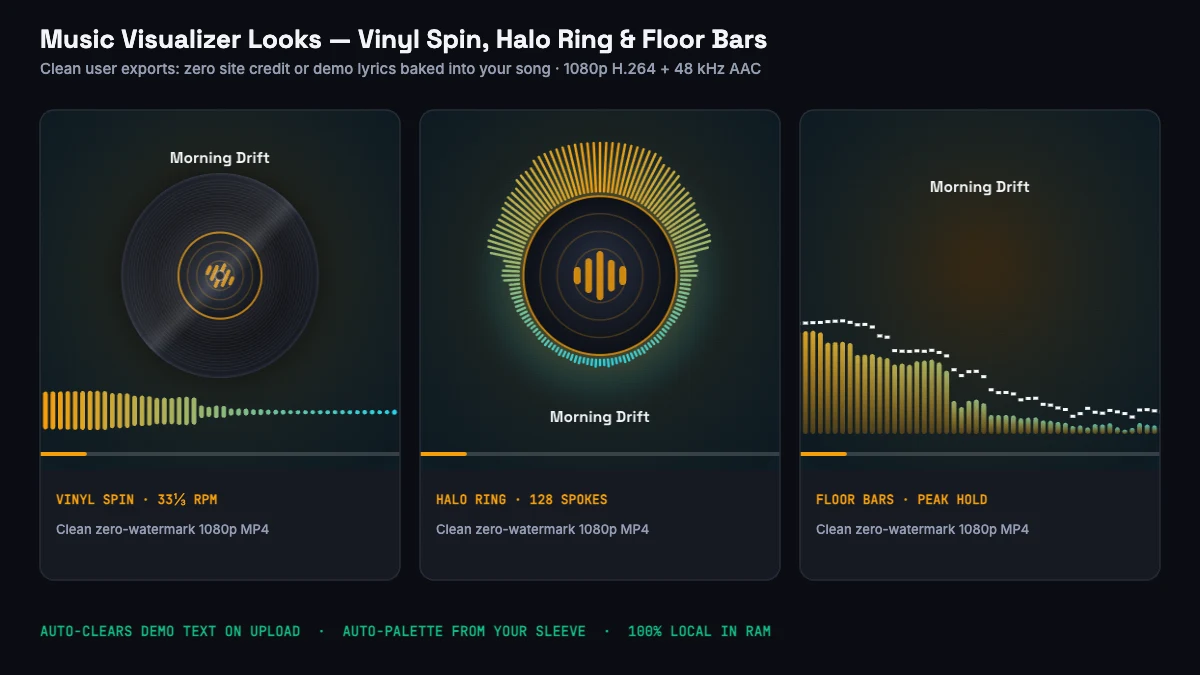
Use Static Cover for a clean first proof. It makes incorrect artwork, misspelled credits and audio problems easy to spot. Then try Dynamic Cover on the same eight or fifteen seconds. Scrub across a kick, a breakdown and an unaccompanied piano note. Keep the moving version if a listener can still read the title across all three moments. Lower Reactivity Gain if the loudest bars swallow the sleeve on every downbeat. That control changes the picture's movement without changing the mix.
For a beat with a long sustained bass note, a spectrum display and a waveform can convey quite different things. A spectrum can keep one band raised for the length of the note. A waveform records changes in overall amplitude and draws attention to the transient when the note starts. Try a contrasting preset in the music visualizer on the exact same section to compare them. A quiet instrumental with a striking photograph may already have everything it needs in the static version.
Render a short proof and then the complete beat
Choose 16:9 and MP4 for the ordinary widescreen upload. On a supported browser the fast path combines H.264 picture with AAC audio. For artwork generated at 30 frames per second, a 30 fps render gives a straightforward delivery file. If another source includes filmed material, follow YouTube's guidance about preserving its original frame rate. Check the Export panel for the format available on this device and inspect the file you actually download.
Render the transition from the intro into the first full drum pattern. Play that file at normal speed without the studio open. Listen for the kick, watch that the sleeve stays legible during the loud section, and compare the piano tone with the original. When satisfied, select Full and export again. Check the duration against the bounce and play the last few seconds. A preview accidentally left at fifteen seconds can upload successfully and still cut the song off before the first verse.
Write a listing a vocalist can act on
Use a title that identifies the instrumental and its musical character. For the example, a listing such as Northbound | Melodic Piano Type Beat | 90 BPM makes a claim the listener can check in the opening bars. If you use an artist reference as a style description, make the producer credit clear and avoid wording that implies an official collaboration. Your description can name the key, explain how to obtain the beat and direct people to the current licensing terms.
Spell out what a free preview permits. Listening, recording a private writing demo, publicly releasing a track and monetizing a release can each involve different permissions. Say which terms apply to this specific beat. If a loop supplier, featured player or cover artist imposes conditions, check them before publication and retain the agreement alongside the project. A viewer following a licensing link should be able to match the beat name and version to the audio on YouTube.
Check the upload in the player
Use an unlisted upload while checking the deliverable. When processing finishes, watch it on a desktop and a phone. Compare the section around the first drum entry with the downloaded MP4 at a similar listening level. Check the title and thumbnail in YouTube Studio, then follow the beat link from the description. The last step catches a common release mistake where a working store link leads to a different beat or an old license offer.
Content ID and channel monetization have separate eligibility requirements. YouTube describes exclusive rights as a condition for supplying reference material to Content ID. Check the underlying rights before proposing a reference that includes a nonexclusive loop or licensed material. Channel monetization also involves YouTube's review of the channel and its content. For your own records, keep the final video, its source bounce, artwork permissions and published terms together. Those files document exactly which version a vocalist auditioned and which offer accompanied it.
Keep a release note for the arrangement itself. For example, write down the bar where the drums enter and the timestamp where the second hook changes. If a rapper asks for eight more bars before the hook, that note tells you which published arrangement they used for their demo. Make the alternate bounce under a distinct version name and send them the matching reference. A regenerated video with a longer verse can look identical on its first frame while putting every later edit at a different point in the song.
Sources & Primary References
- YouTube Help on recommended encoding settings for uploaded video
- YouTube Help on video resolution, aspect ratios and the adaptive player
- YouTube Help on uploading custom video thumbnails
- YouTube Help on qualifying for Content ID and exclusive rights
- YouTube Help on channel monetization policies and review