
Why You Cannot Upload an iPhone Voice Memo Directly to Video Platforms
Whether you recorded an acoustic chorus idea on iPhone, a grandmother's story, a client interview, or a 45-second hot take, trying to share that Voice Memo on Instagram, TikTok, Facebook, or YouTube hits the same wall: the file is grayed out or rejected.
The reason sits directly in the MPEG-4 container specification. According to IETF RFC 4337 (MIME Type Registration for MPEG-4, Section 3.2), Apple's .m4a file extension signals an audio-only MPEG-4 file (audio/mp4) without a visual presentation track. Video platforms inspect the container header on upload and require an actual video stream (such as H.264 avc1) alongside your audio stream before accepting the file.
Most online "voice memo to video" converters fix this by forcing you to upload your private .m4a recording to a remote cloud server, wait in a queue, and pay to remove a corner watermark. Instead, modern browsers decode .m4a locally and package a universal H.264 + 48 kHz AAC .mp4 directly on your own machine — keeping family voicemails, unreleased songs, and embargoed interviews 100% private.
Step 1: Export Your Voice Memo From iPhone or Mac as a Standard .m4a File
Before opening the converter, pull the clean .m4a file out of Apple's Voice Memos app using Apple's documented export paths:
On iPhone (iOS)
Per Apple Support (Share a recording in Voice Memos on iPhone):
- Open the Voice Memos app and tap the recording you want to share.
- Tap the More Actions (
...) button and tap Share (or choose Save to Files to place the.m4adirectly inside iCloud Drive or On My iPhone). - If your recording uses Voice Memos enhancements or layered tracks on newer iOS versions, keep the default Rendered share option so all edits mix cleanly into a single standard
.m4afile rather than an app-specific editable package. - For long memos (over 2 minutes) or cleanest 1080p speed, AirDrop the
.m4ato your Mac or open it from iCloud Drive in desktop Chrome, Edge, or Brave.
On Mac (macOS)
Per Apple Support (Share a recording on Mac):
- Open Voice Memos on macOS and select your recording in the sidebar (if iCloud Sync is enabled for Voice Memos, your iPhone recordings appear automatically).
- Drag the recording straight onto your Desktop or any Finder folder — macOS copies out a standard
.m4afile immediately with zero re-encoding.
Compressed vs. Lossless Recording Quality (Plan Ahead for Future Memos)
According to Apple Support (Change Voice Memos settings on Mac), Apple's Voice Memos offers two Audio Quality presets:
- Compressed (Default): Encodes lossy AAC inside
.m4ato save storage space — fine for spoken reminders and short social clips. - Lossless: Encodes Apple Lossless (ALAC) inside
.m4afor much larger files with full uncompressed-equivalent audio fidelity. If you record singing, guitar demos, or podcast interviews you plan to upload to YouTube or Spotify later, switch to Lossless before hitting record (changing the setting never upgrades older recordings).
Step 2: Pick the Right Visual Format for Your Voice Memo
Different voice memos call for different visual treatments. Choose the layout that matches where the video will live:
| Where You Will Share the Video | Best Studio Mode & Preset | Aspect Ratio & Pixels | Why It Works Best |
|---|---|---|---|
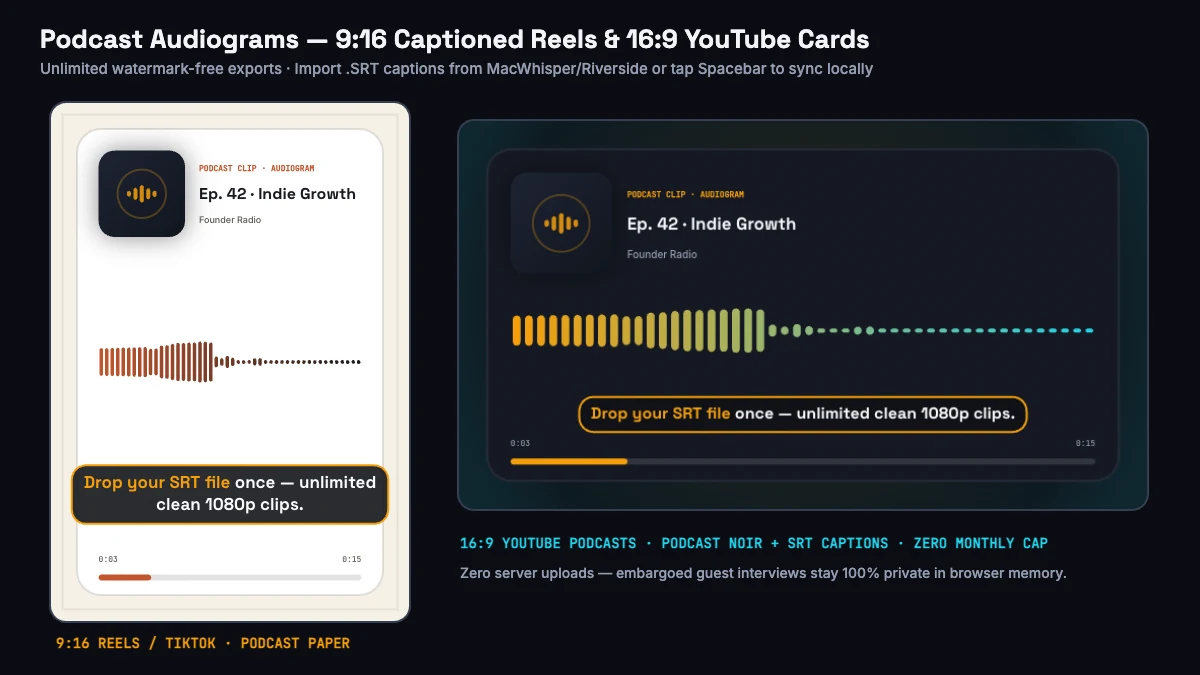
| Instagram Reels / TikTok / YouTube Shorts | Podcast Audiogram Maker (Podcast Paper or Quote Clip) |
9:16 (1080×1920) |
Vertical full-screen card with moving voice waveform + optional .SRT captions so muted mobile viewers stop scrolling |
| YouTube Standard Video (Song Demo / Lecture) | MP3 & M4A to Video (Cover Only (Static) or Cover Card) |
16:9 (1920×1080) |
Pairs a clean still photo or album sleeve with YouTube-recommended 48 kHz AAC + H.264 video (zero motion distraction in Static mode) |
| Instagram Feed / LinkedIn / X | Podcast Audiogram Maker (Podcast Paper or Player Pill) |
4:5 (1080×1350) or 1:1 (1080×1080) |
Warm archival paper card stands out sharply against dark social feeds without cropping |
| Texting / WhatsApp / Private Family Keepsake | MP3 & M4A to Video (Cover Only (Static)) |
1:1 or 16:9 (720p Fast) |
Tiny file size, plays inline inside iMessage, WhatsApp, and Photos app with a meaningful family photo |
| Printed Wall Art or Tattoo Stencil | Sound Wave Generator (Mirror flat #000000) |
Vector .svg (1600×520) |
Instant infinite-resolution vector voiceprint from a 2–5 second phrase — zero video encoding needed |
Step 3: Turn Your Voice Memo Into a Clean MP4 Locally (Zero Upload)
- Open your matched workspace: Use MP3 & M4A to Video for a pure photo-plus-audio MP4 (starts cleanly in Static Cover Only with blank title, artist, and lyrics), or Podcast Audiogram Maker for a styled voice waveform and captions.
- Load your
.m4afile and optional photo: Click Add My Audio (or drag your.m4aand.jpg/.pngphoto onto the preview together — our studio always processes the audio file before applying the image, regardless of file selection order). Your recording stays strictly in local browser memory. - Trim to the strongest moment (optional): For a 6-minute voice ramble where only 35 seconds belong on TikTok or Reels, pick 30s or 60s on the waveform deck, scrub to the start of your sentence, watch the Play ... · Export ... readout, and click Set Start Here.
- Add captions for spoken memos (recommended): Open the Lyrics / Captions tab and either import a free
.srttranscript (from MacWhisper, Whisper, or Apple's built-in Voice Memos transcript copied and timed with Tap-Sync) or paste 3–6 punchy quote lines and tap Spacebar at0.75×speed. - Check aspect ratio and export: Verify the live spec readout (for example
Output: 1080×1920 · 30.0s · 30fps · H.264 + AAC MP4) and click Export Free MP4.
Desktop vs. iPhone Export Speed (Honest Browser Reality)
- Desktop Chrome, Edge, or Brave (Fastest): Uses native offline WebCodecs (
VideoEncoder+AudioEncoder) to render4–10×faster than real time. In our verified local Chrome +ffprobebenchmark (About & Benchmarks), a full 3-minute stereo master encodes to1080pH.264 +48 kHzAAC MP4 in35.9sencoder time (39.4sharness wall time) with0.0 msA/V sync drift. - iPhone Safari / iOS Chrome / Desktop Safari: Safari and mobile browsers fall back to local
1×real-time browser capture (producing a clean.mp4on iOS Safari via nativeMediaRecorder), while static Vector SVG and short Transparent GIF exports finish instantaneously on every device. For voice memos longer than 2 minutes, transferring to desktop Chrome via AirDrop or iCloud Drive saves several minutes of wait time.
Troubleshooting 4 Common Voice Memo to Video Issues
| Problem | Technical Cause | Verified Fix |
|---|---|---|
| No sound when previewing on iPhone | Hardware mute switch / iOS WebKit audio session state | Fixed in studio v1.5 via navigator.audioSession = "playback" + silent PCM anchor; tap Play directly and verify phone media volume is up |
| Voice Memo sounded crisp on iPhone but muddy after upload | Recording was mono at low bitrate or clipped during loud speech | Switch Voice Memos to Lossless before recording; export MP4 directly from the original .m4a instead of screen-recording your phone |
| My spoken captions get covered by TikTok or Reels buttons | Text placed inside the bottom 20–35% or right 18% UI overlay zone | Toggle Safe Zones before exporting and read our TikTok, Reels & YouTube Shorts Safe Zone Guide |
| File will not import into Instagram or YouTube from Firefox | Firefox lacks WebCodecs H.264 MP4 and falls back to .webm |
Export directly in desktop Chrome, Edge, or Brave for native .mp4, or convert .webm to .mp4 via FFmpeg |
Sources & Primary References
All Apple Voice Memos export rules, MPEG-4 container mechanics, and video upload standards in this guide were verified against primary official documentation (checked November 2026):
- Apple Support — Share a recording in Voice Memos on iPhone (iOS Share sheet, Save to Files, and Rendered vs. Editable
.m4aexport): https://support.apple.com/guide/iphone/share-a-recording-iph3d6dc359/ios - Apple Support — Make a recording in Voice Memos on iPhone (native iPhone Voice Memos recording workflow): https://support.apple.com/guide/iphone/make-a-recording-iph4d2a39a3b/ios
- Apple Support — Share a recording on Mac (Voice Memos) (macOS drag-and-drop and sharing workflow): https://support.apple.com/guide/voice-memos/share-a-recording-vm05f9fa82d4/mac
- Apple Support — Change Voice Memos settings on Mac (official Compressed vs. Lossless Audio Quality documentation): https://support.apple.com/guide/voice-memos/change-voice-memos-settings-vm0ba246ff3e/mac
- IETF RFC 4337 — MIME Type Registration for MPEG-4 (Section 3.2 distinguishing audio-only
.m4aaudio/mp4from visual.mp4): https://datatracker.ietf.org/doc/html/rfc4337 - YouTube Help — Recommended upload encoding settings (official MP4 H.264 +
48 kHzAAC-LC upload spec): https://support.google.com/youtube/answer/1722171?hl=en - TikTok Support — Uploading videos (video container requirements for TikTok uploads): https://support.tiktok.com/en/using-tiktok/creating-videos/uploading-videos